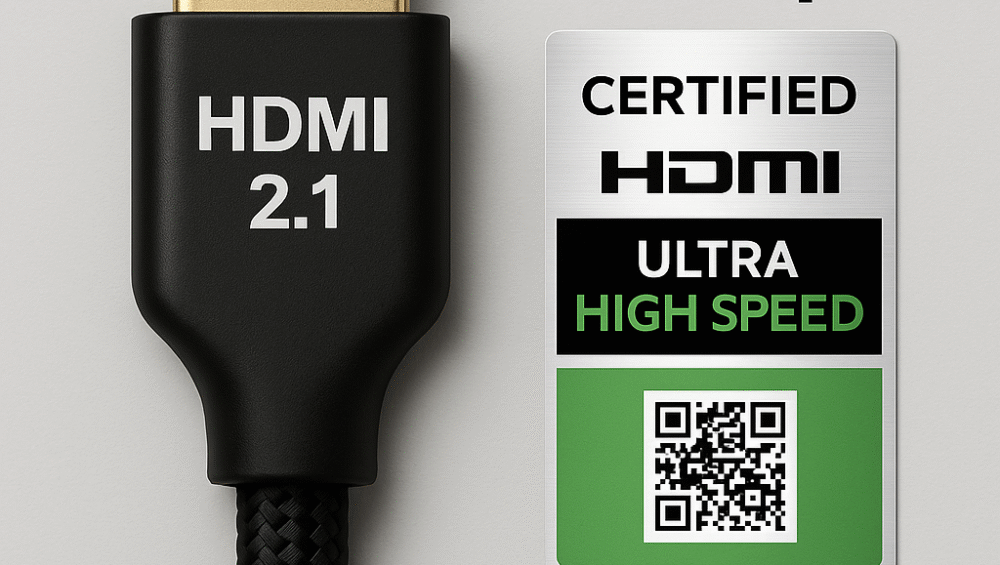
HDMI 2.1 is the backbone of modern home entertainment systems. It supports 8K video playback, 4K/120Hz gaming, VRR, ALLM, and eARC for uncompressed, high-quality audio. However, many users often miss these advantages due to incorrect settings, outdated cables, or firmware limitations.
This guide takes you step by step through the HDMI 2.1 AV receiver setup. You’ll learn how to configure popular receivers from Yamaha, Denon, and Marantz, while also gaining troubleshooting insights. In addition, you’ll see real-world setup examples using leading TVs such as the LG C3 OLED, Samsung QN90C, and Sony Bravia XR to ensure you get the most from your system.
What You Need for HDMI 2.1 AV Receiver Setup
Before starting your hdmi 2.1 av receiver setup, make sure you have the right components in place:
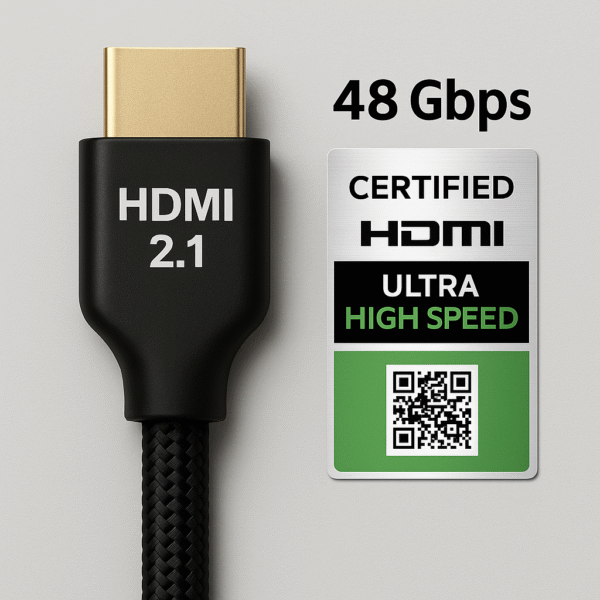
HDMI 2.1 Certified Cable – At least 48Gbps bandwidth to handle 4K/120Hz and 8K signals.
HDMI 2.1-Compatible Receiver – Examples include the Yamaha RX-V6A or Denon AVR-S970H.
HDMI 2.1-Capable Display – Such as the LG C3 OLED, Samsung QN90C, or Sony Bravia XR.
Updated Firmware – Ensure both your receiver and display are running the latest updates.
✅ Tip: Skipping any of these requirements can prevent your hdmi 2.1 av receiver setup from delivering full bandwidth and advanced gaming features.
Step-by-Step Setup Instructions
Follow these steps to ensure your system delivers full 4K/120Hz or 8K performance.
1. Check Firmware First
Visit the manufacturer’s website or use the mobile app.
Yamaha: Update through the MusicCast app.
Denon: Update via the HEOS app or receiver display settings.
✅ Always update both receiver and TV firmware before changing HDMI modes.
2. Enable Enhanced HDMI Settings
Yamaha: Menu → HDMI → 4K Mode → Enhanced.
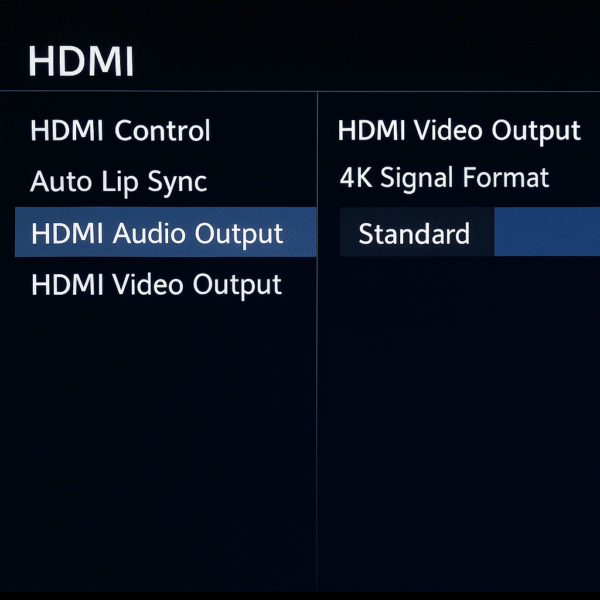
Denon: Setup → Video → 4K Signal Format → 8K Enhanced.
Sony Bravia: Settings → External Inputs → HDMI Signal Format → Enhanced Format (VRR/120Hz).
✅ Tip: Without these adjustments, your hdmi 2.1 av receiver setup may default to standard HDMI mode, limiting refresh rate and bandwidth.
3. Use the Correct HDMI Ports
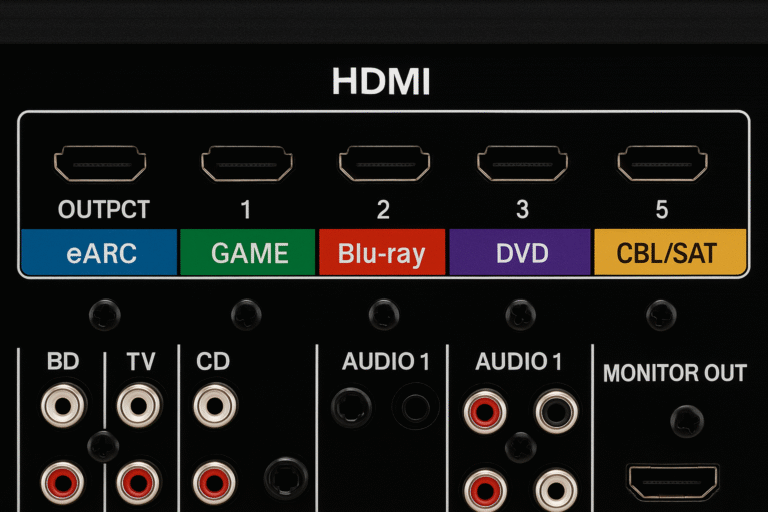
Not every HDMI input on your receiver supports full 48Gbps bandwidth. Using the wrong port is one of the most common mistakes in an hdmi 2.1 av receiver setup.
Yamaha RX-V6A: Ports HDMI 3–5 are the full 2.1 inputs.
Denon AVR-S970H: Ports HDMI 1–3 support 8K and 4K/120Hz.
✅ Always connect consoles or PCs to the ports labeled “8K” or “4K/120Hz.”
4. Turn on Game Mode / ALLM / VRR (If Applicable)
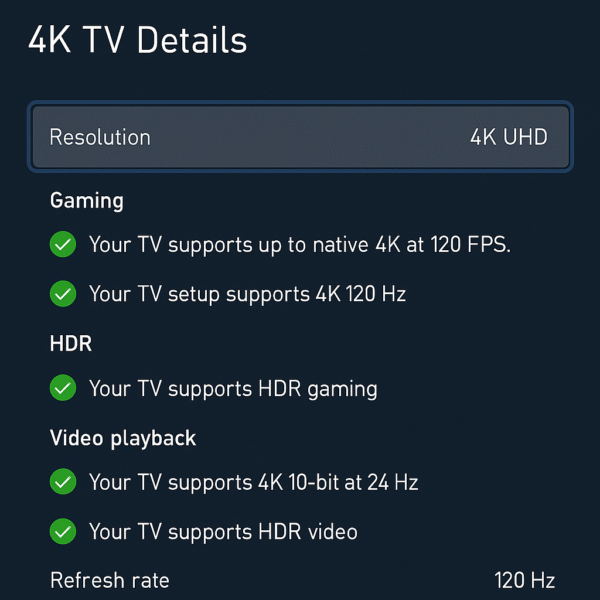
On LG TVs: Settings > Picture > Game Optimizer > Enable ALLM, VRR
On Samsung TVs: Settings > General > Game Mode Settings
On Receiver: Auto Low Latency Mode is typically default ON
✅ Match the settings between receiver and TV
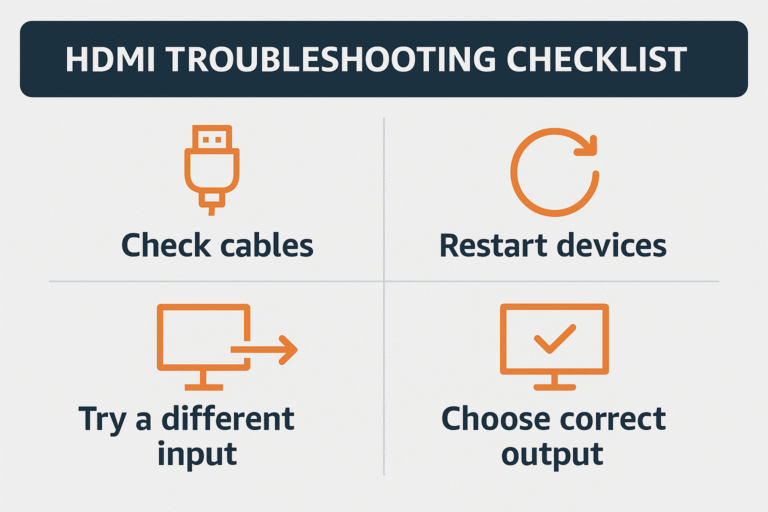
Common Issues in Setup and How to Fix Them
| Problem | Fix |
|---|---|
| When there is no signal from PS5 or Xbox, first check the HDMI cable, the correct port, the latest firmware, and the signal format. | Always verify the cable supports full bandwidth and confirm ports are properly assigned in your HDMI 2.1 AV receiver setup. |
| If HDR or VRR does not appear, ensure both the TV and the AV receiver have these features enabled. | Additionally, activate the appropriate video mode in your HDMI 2.1 AV receiver setup menu for compatibility. |
| When you notice an intermittent black screen, switch to a certified 48Gbps HDMI cable and keep the length under 6ft. | Moreover, avoid using adapters or extenders that may interfere with stable signals during your HDMI 2.1 AV receiver setup. |
| If the 4K/120Hz option is missing, change the signal format to “Enhanced” and disable eco or energy-saving modes. | This adjustment ensures smoother gameplay and optimized visuals in any HDMI 2.1 AV receiver setup. |
Pro Tips for Optimizing Receiver Setup
Use HDMI input labels such as “Game Console” to automatically enable Low Latency Mode (ALLM). This ensures your HDMI 2.1 AV receiver setup switches to gaming-optimized settings instantly.
Keep ALLM and VRR on for smoother motion during fast-paced titles like Fortnite, FIFA, and Call of Duty. As a result, your receiver setup reduces lag and prevents screen tearing.
Enable eARC when using a soundbar or advanced audio system. Consequently, your receiver setup delivers full Dolby Atmos sound without compression for immersive gaming and movies.
Choosing the Right TV for Your HDMI 2.1 Receiver Setup
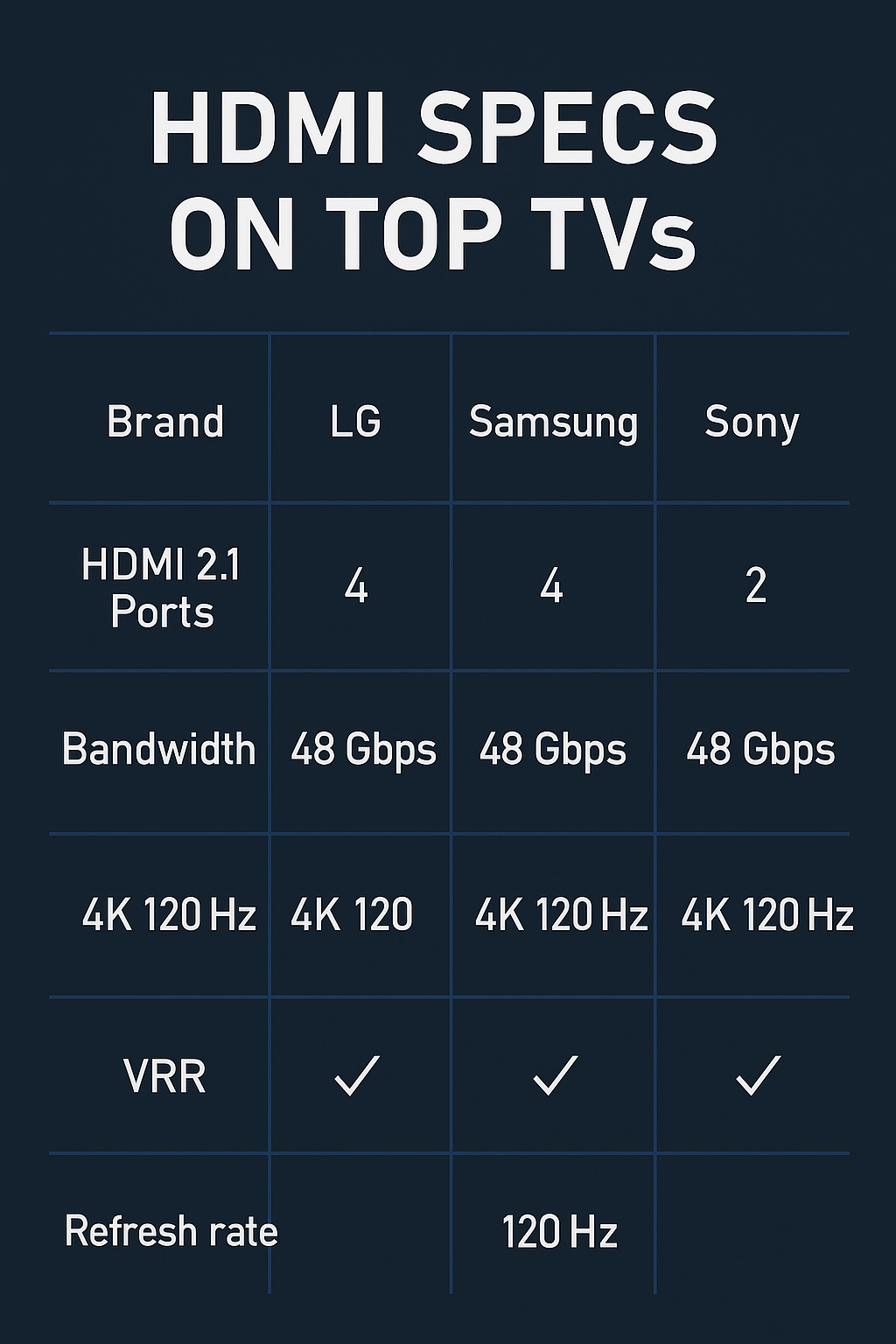
When planning an HDMI 2.1 AV receiver setup, selecting the right TV is just as critical as choosing the receiver itself. The display must support advanced features to unlock the full potential of your home theater and gaming system. Below is a quick comparison of some of the most reliable 2025 TV models.
| TV Model | HDMI 2.1 Ports | 4K/120Hz | VRR | ALLM |
|---|---|---|---|---|
| LG C3 OLED | 4 | ✅ | ✅ | ✅ |
| Samsung QN90C | 4 | ✅ | ✅ | ✅ |
| Sony Bravia XR A80L | 2–4 | ✅ | ✅ | ✅ |
✅ These TVs pair seamlessly with Yamaha, Denon, Onkyo, and Marantz AVRs. Thanks to their multiple HDMI 2.1 ports, they are ideal for gamers who want smooth motion, low latency, and next-generation visuals. They also ensure that your receiver setup delivers maximum performance for both movies and gaming.
Final Verdict: Why HDMI 2.1 Receiver Setup Matters
HDMI 2.1 is essential for unlocking the full potential of your 8K AV receiver. Yet, it only delivers its promise when configured correctly. With the right cables, updated firmware, proper port selection, and optimized display settings, you can enjoy seamless 4K/120Hz gaming, 8K video passthrough, and immersive Dolby Atmos sound.
By taking just a few extra minutes to fine-tune your HDMI 2.1 AV receiver setup, you can transform your entire entertainment experience — turning everyday viewing into a true cinematic and gaming adventure.