Amazon’s Fire TV and Echo devices were designed to work perfectly together. In this guide on how to set up Fire TV with Echo devices, you’ll learn how to sync them for effortless, hands-free control. When properly linked, your Echo speaker can launch apps, play shows, adjust volume, or even power your TV on and off—all with simple Alexa voice commands.
As a result, this step-by-step guide will show you exactly how to set up Fire TV with Echo devices, create custom Alexa routines, and optimize your smart home experience for 2025.
Why Set Up Fire TV with Echo Devices?
As this guide explains, when you set up Fire TV with Echo devices, you unlock a completely hands-free entertainment experience. Pairing the two allows Alexa to control your TV with simple voice commands—no remote needed.
What You Can Do:
Say, “Alexa, play Stranger Things on Netflix,” and your show starts instantly.
Adjust the volume or pause playback without touching a button.
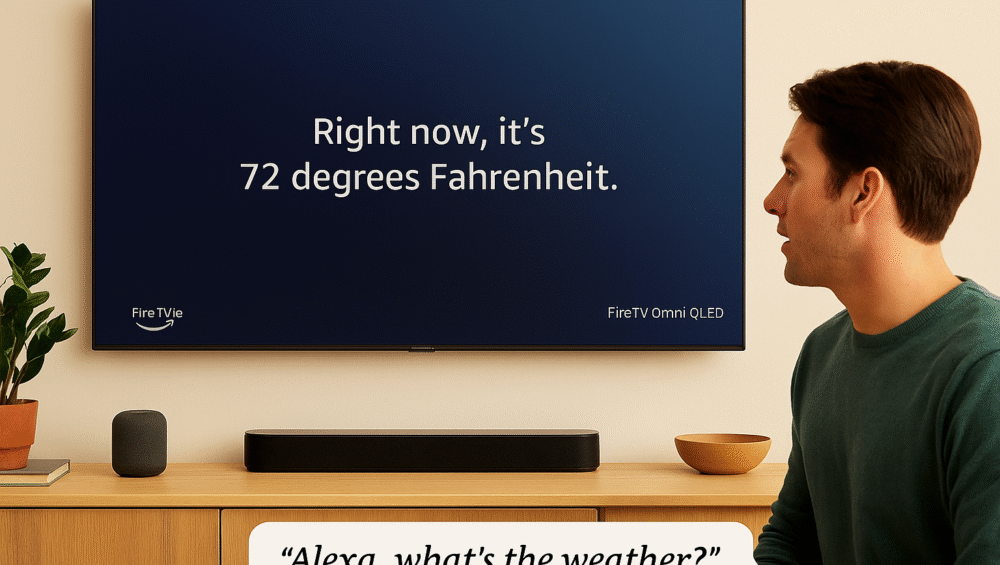
Ask questions, like “What’s the weather?” without interrupting what’s on screen.
Enjoy seamless smart home integration with your other Alexa-enabled devices for lighting, sound, and automation.
In short, once you set up Fire TV with Echo devices, your living room transforms into a smart, connected entertainment hub powered entirely by your voice.
What You’ll Need for the Set Up
Before you begin, make sure you have the right equipment and account setup. To successfully set up Fire TV with Echo devices, both products must be compatible and linked under the same Amazon account.
You’ll Need:
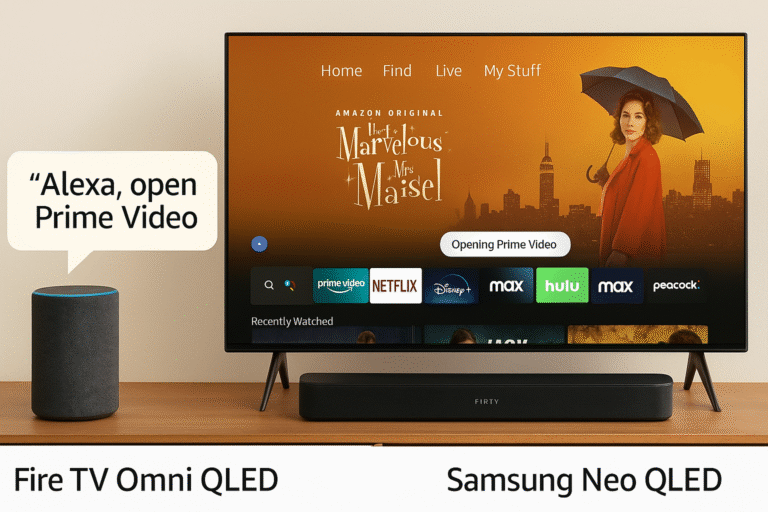
A compatible Fire TV, such as the Fire TV Omni QLED, Fire TV Stick, or Fire TV Cube.
An Alexa-enabled Echo device, like an Echo Dot, Echo Studio, or Echo Show.
Both devices registered to the same Amazon account to ensure smooth syncing and communication.
Once these essentials are ready, you can move on to pairing your devices and enabling full voice control through Alexa.
How to Set Up Fire TV with Echo Devices (Step-by-Step)
Once you’ve confirmed compatibility, follow these quick steps to set up Fire TV with Echo devices and enable hands-free Alexa control.
Step 1: Open the Alexa App
Open the Amazon Alexa app on your iOS or Android smartphone. Tap the “Devices” tab at the bottom of the screen.
Step 2: Select Your Echo
Choose your Echo speaker from the device list. Then, scroll down and tap “TV & Video.”
Step 3: Link Your Fire TV
Select “Link a Fire TV” and pick your Fire TV device (such as a Fire TV Stick, Cube, or Omni QLED) from the list.
Step 4: Confirm Pairing
Once linked, Alexa will confirm that your Echo and Fire TV are successfully connected. You can now control your Fire TV entirely by voice.
After completing these steps, you’ve successfully learned how to set up Fire TV with Echo devices—unlocking effortless voice control for streaming, navigation, and smart home automation.
Voice Commands to Try After You Set Up Fire TV with Echo Devices
Once you successfully set up Fire TV with Echo devices, you can start enjoying true hands-free control. These Alexa commands make watching, browsing, and managing your Fire TV effortless—no remote required.
Try Saying:
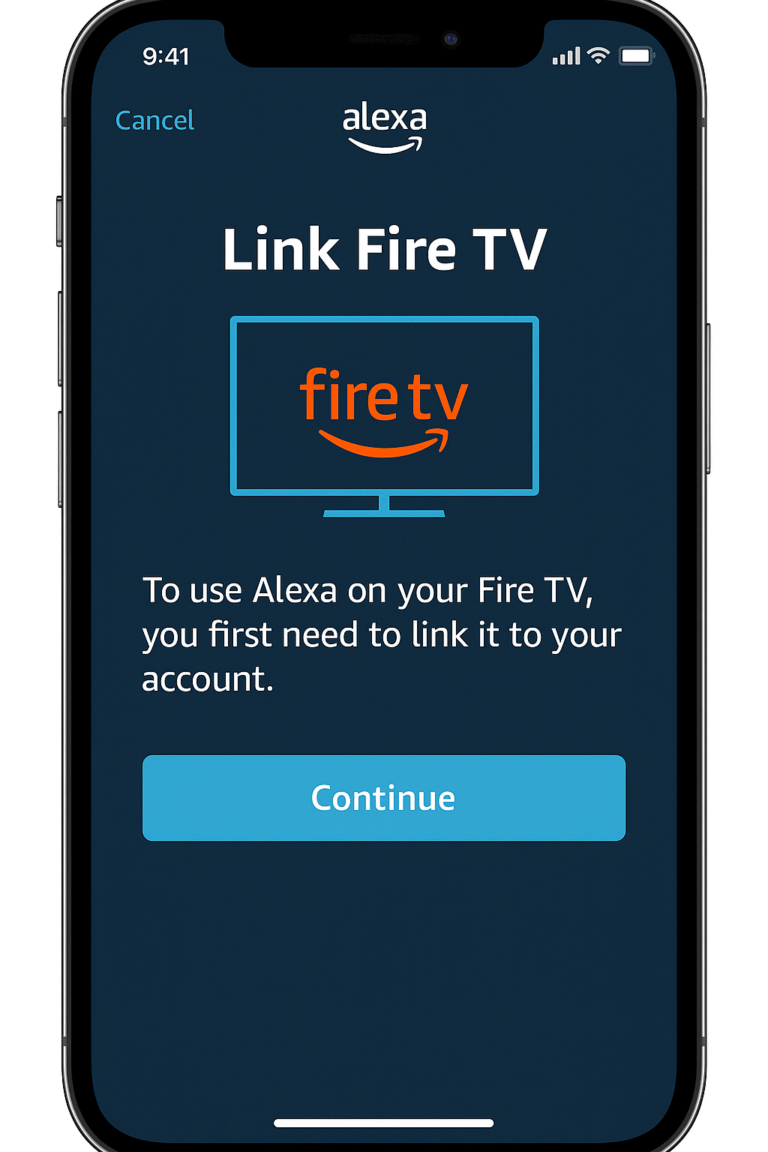
“Alexa, open Prime Video.”
“Alexa, pause the show.”
“Alexa, go home.”
“Alexa, rewind 30 seconds.”
Pro Tip: Even if your remote is lost or out of reach, Alexa still has you covered. Just speak naturally, and your Echo will handle the rest—perfect for when you’re relaxing on the couch or multitasking around the house.
In short, once you set up Fire TV with Echo devices, you’ll enjoy a smoother, smarter, and completely hands-free entertainment experience.
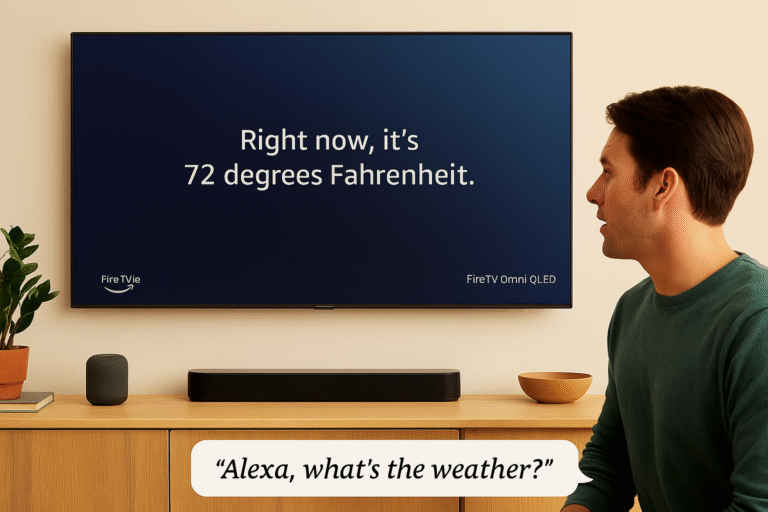
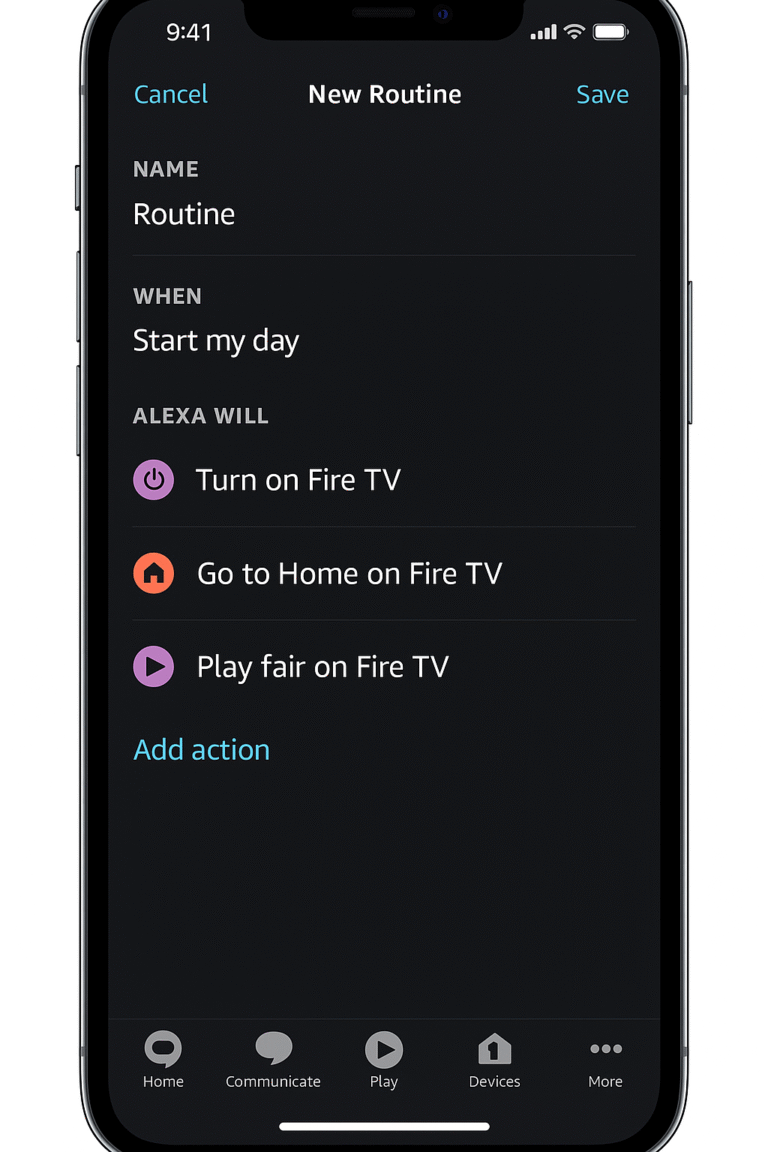
Customize with Alexa Routines
Once you set up Fire TV with Echo devices, you can take automation even further with Alexa Routines. These let you combine multiple actions—like turning on your TV and adjusting lights—into one simple voice command.
Example Routine: “Movie Night”
Turn on Fire TV
Set volume to 15
Dim smart lights to 30%
Launch Netflix
With a single phrase—“Alexa, movie night”—your living room instantly transforms into a home theater.
How to Create a Routine:
In the Alexa app, go to More > Routines.
Tap “+” to create a new routine.
Set a trigger phrase, such as “Alexa, movie night.”
Add your Fire TV and any smart home actions (lighting, plugs, thermostats, etc.).
Once saved, Alexa will execute all your chosen actions simultaneously, creating a seamless smart entertainment experience.
In short, pairing routines with your setup makes Fire TV and Echo devices work together in perfect harmony—automating your space with true voice-powered control.
Troubleshooting Tips
If you’ve tried to set up Fire TV with Echo devices but something isn’t working as expected, don’t worry—most problems are easy to fix. Here are a few quick solutions to get your voice control running smoothly.
1. Fire TV Not Showing Up in the Alexa App?
Make sure both your Fire TV and Echo device are connected to the same Wi-Fi network and registered under the same Amazon account. This is the most common cause of pairing issues.
2. TV Not Responding to Commands?
Open your Fire TV Settings > Alexa > Control Settings and verify that Alexa control is enabled. Restarting both devices can also help refresh the connection.
3. Using Multiple Fire TVs?
If you have more than one Fire TV in your home, rename each device in the Alexa app (e.g., “Living Room TV,” “Bedroom TV”) to prevent Alexa from getting confused.
In short, these quick fixes resolve most connection and response problems, ensuring that your Fire TV and Echo devices stay in sync for effortless voice control.
Compatible Devices
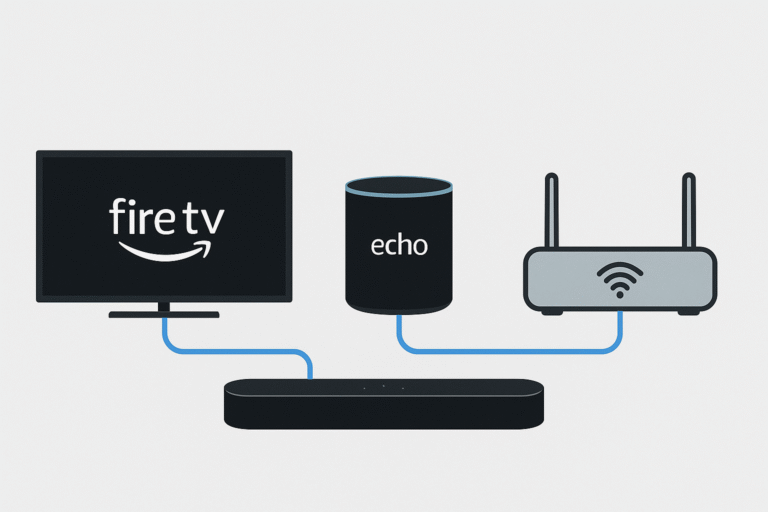
When you set up Fire TV with Echo devices, it’s important to match the right models for best performance and full Alexa compatibility. Below is a quick reference chart showing ideal pairings between Fire TV and Echo models.
| Fire TV Models | Recommended Echo Devices |
|---|---|
| Fire TV Stick 4K | Echo Dot (3rd Gen or newer) |
| Fire TV Cube | Echo Show |
| Fire TV Omni QLED | Echo Studio, Echo Flex |
For the best experience, make sure both devices are connected to the same Wi-Fi network and registered under the same Amazon account. This ensures smooth pairing, accurate voice recognition, and reliable control across your home setup.
In short, using the right device combination makes it easier to set up Fire TV with Echo devices and enjoy truly hands-free entertainment in 2025.
Why You’ll Love Setting Up Fire TV with Echo Devices
Once you set up Fire TV with Echo devices, you’ll enjoy truly hands-free control over your entire entertainment experience. From launching apps to adjusting volume, Alexa takes care of everything—no remote needed.
It’s perfect for families, elderly users, or anyone tired of losing remotes. With just a voice command, you can play shows, open apps, or even check the weather while watching TV.
Beyond entertainment, this setup allows seamless integration with smart lighting, plugs, and home security devices, making your living room the central hub of your connected home.
In short, when you set up Fire TV with Echo devices, you’re not just adding convenience—you’re transforming your entire home entertainment experience into something smarter, simpler, and fully voice-controlled.