
Smart TVs are evolving rapidly, and the LG C3 OLED is leading the innovation wave in 2025. With its ultra-thin bezels, OLED evo brightness, and deeper voice assistant integration, it offers a truly hands-free experience. If you’ve ever wanted to control your TV and smart home using only your voice, learning how to set up Alexa on LG C3 is the perfect place to start.
Whether you’re switching inputs, launching Netflix, or dimming your lights for movie night, this guide walks you step-by-step through the Alexa setup process on your LG C3 OLED TV for seamless voice control.
What You’ll Need to Set Up Alexa on LG C3 OLED TV
Before you begin, make sure you have the following essentials ready:
LG C3 OLED TV (2023 or newer) – supports built-in Alexa and ThinQ integration.
Amazon Alexa account + Alexa app – for linking and managing voice commands.
LG ThinQ app (on your smartphone) – used to connect your TV to Alexa.
Wi-Fi connection – both devices must be on the same network.
Optional: Amazon Echo speaker – enhances range and enables hands-free control in larger rooms.
✅ Pro Tip: Ensure your LG TV firmware is updated to the latest version before linking Alexa for the smoothest setup experience.
Step-by-Step Guide to Set Up Alexa on LG C3 OLED TV
Step 1: Sign In to the LG ThinQ App
To begin the process, download the LG ThinQ app from the App Store or Google Play.
Sign in with your existing LG account, or create one if needed.
Follow the on-screen prompts to connect your LG C3 OLED TV to the app.
Step 2: Enable Alexa on Your LG C3 TV
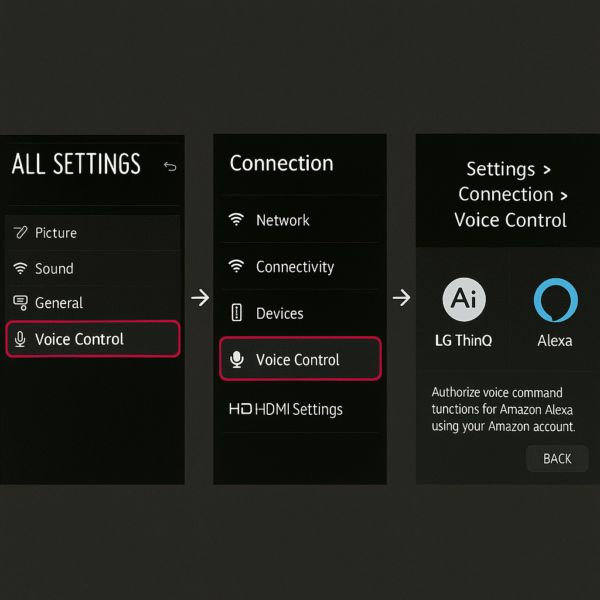
Next, grab your LG Magic Remote and press the Settings (gear) button.
Navigate to All Settings → General → Devices → Voice Assistant.
Select Alexa from the list (you may also see Google Assistant or None).
This step officially links your TV to Alexa’s ecosystem.
Step 3: Link LG ThinQ with the Alexa App
On your smartphone, open the Amazon Alexa app and go to:
More → Skills & Games → Search “LG ThinQ.”
Tap Enable to Use and sign in with your LG account credentials.
This allows Alexa to recognize and control your TV via voice commands.
✅ Tip: Once linked, say “Alexa, turn on the TV” or “Alexa, open Netflix on LG TV” to test your setup immediately.
What Can Alexa Do on LG C3 OLED?
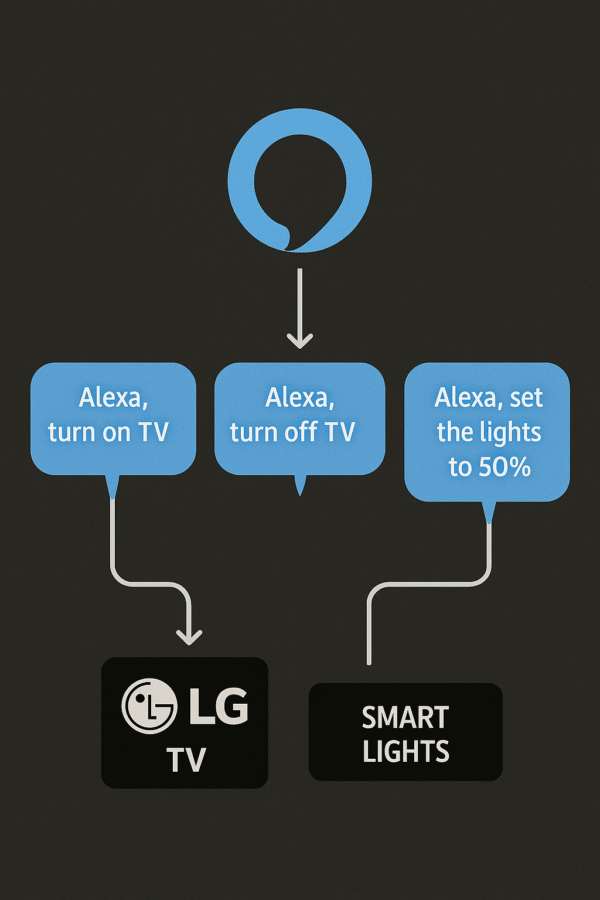
Once Alexa is successfully linked, your LG C3 OLED becomes part of your smart home ecosystem. You can now use simple voice commands to control entertainment, lighting, and more — all hands-free.
Launch apps: “Alexa, open Netflix on LG TV.”
Adjust volume: “Alexa, set volume to 25 on LG TV.”
Power control: “Alexa, turn off the living room TV.”
Switch inputs: “Alexa, switch to HDMI 1.”
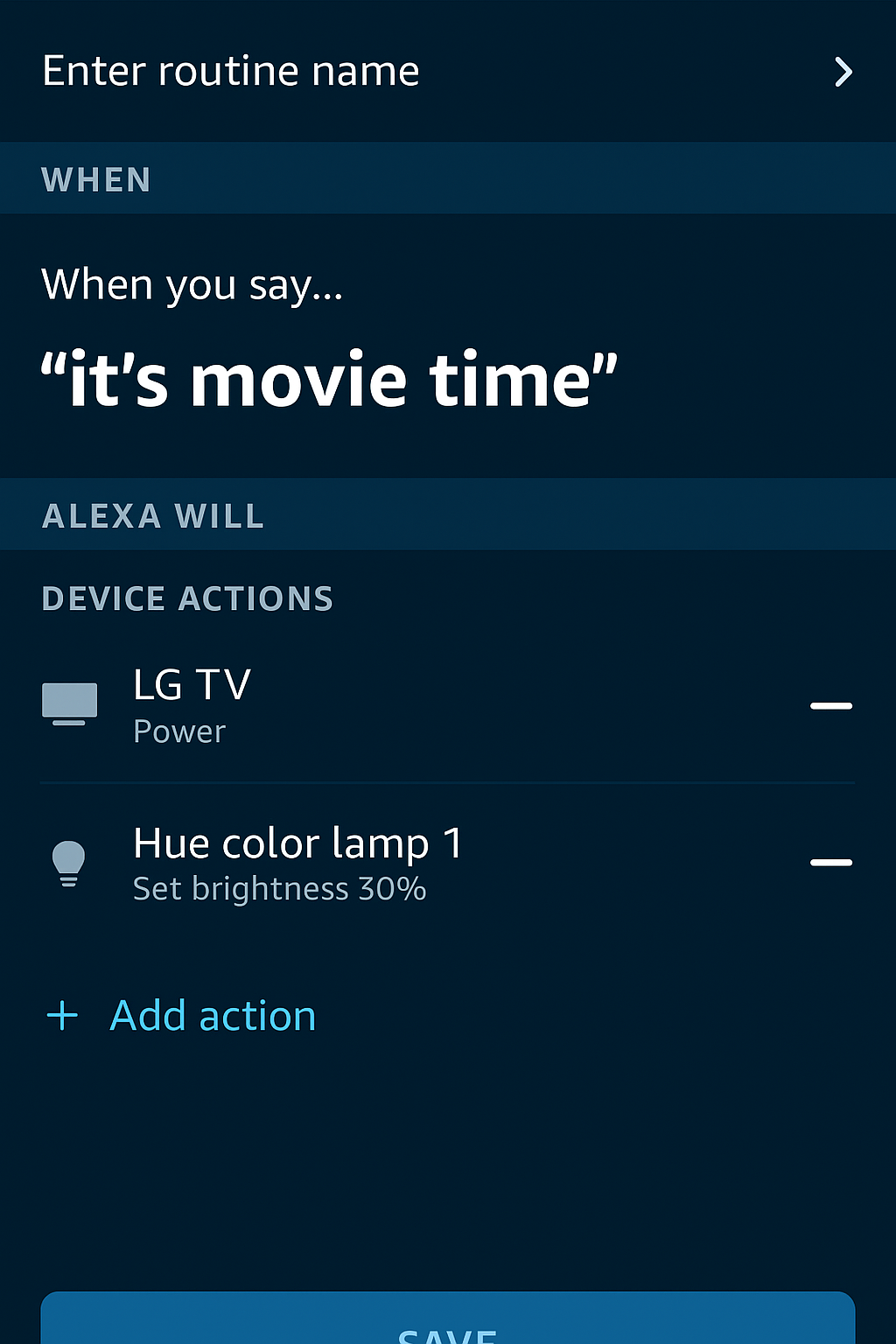
Activate routines: “Alexa, movie night” (turns on TV, dims lights, and adjusts audio automatically).
✅ Pro Tip: Combine your LG TV with smart bulbs or soundbars to create personalized Alexa routines for an immersive home theater experience.
Tips for Smooth Alexa Experience
To keep your Alexa integration running smoothly, follow these quick maintenance tips:
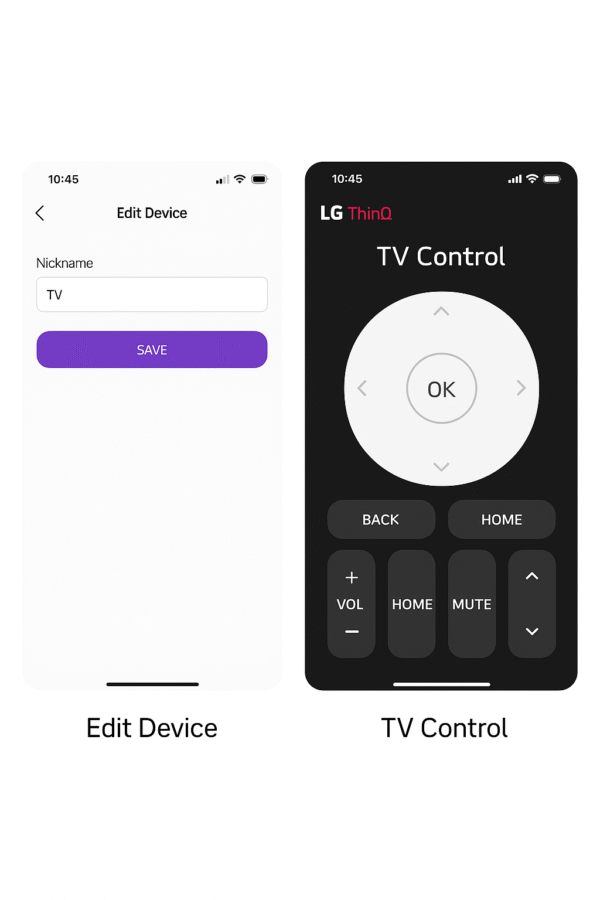
Name your TV clearly: In the LG ThinQ app, rename your device to something simple like “Living Room TV” — this improves Alexa’s voice recognition accuracy.
Keep software updated: Ensure both your LG C3 OLED firmware and Alexa app are up to date for the best performance and new feature compatibility.
Re-link if Alexa stops responding: If voice commands suddenly fail, go to the Alexa app → Skills & Games → LG ThinQ, and disable then re-enable the skill to refresh the connection.
✅ Pro Tip: Reboot your TV and router occasionally to maintain a stable Wi-Fi connection for smoother Alexa responsiveness.
Does Alexa Work Without an Echo Speaker?
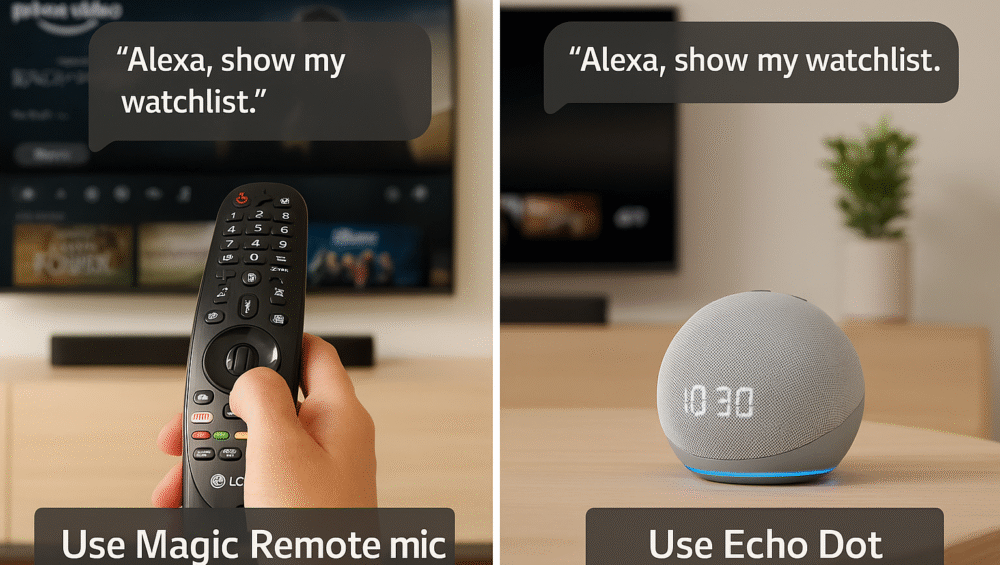
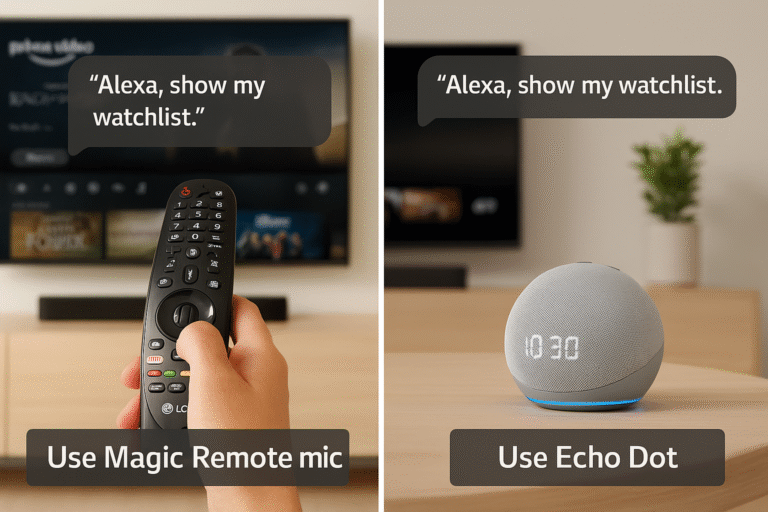
Yes! The LG C3 OLED includes Alexa Built-In, so you don’t need a separate Echo device to use voice commands. You can simply press the microphone button on the LG Magic Remote or speak directly to the TV if far-field microphones are enabled.
However, if you want enhanced responsiveness and broader automation, pairing an external Echo speaker is recommended. It provides far-field mic support, access to custom Alexa routines, and stronger smart home integration — making your experience even smoother after you set up Alexa on LG C3.
Troubleshooting After You Set Up Alexa on LG C3 OLED TV
Even after setup, you may encounter occasional hiccups with Alexa commands. Here’s how to fix the most common issues:
TV Not Responding to Alexa?
🔁 Reboot both your LG C3 OLED TV and your Wi-Fi router to refresh the connection.
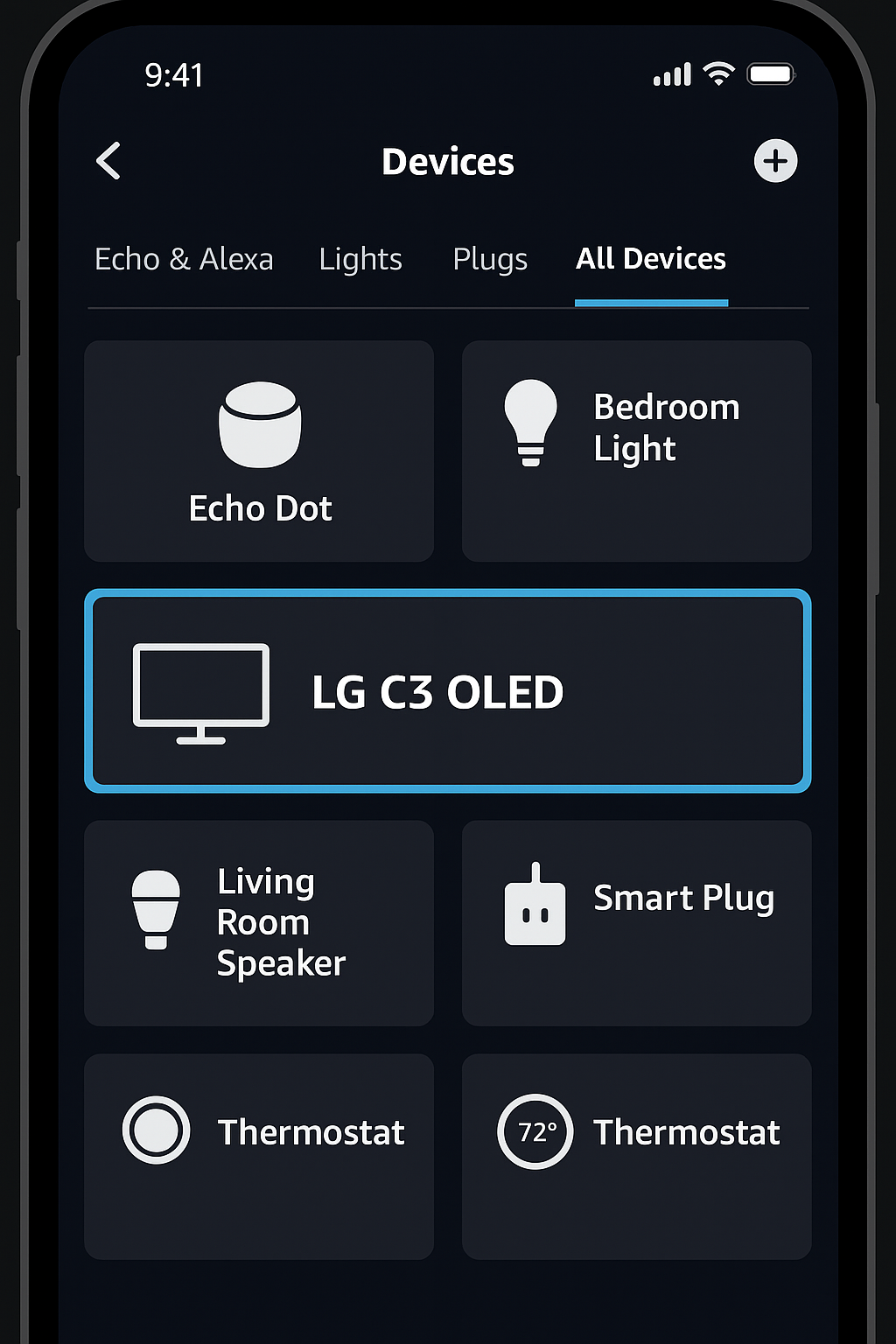
🏷️ Check your device name in the Alexa app — make sure it matches what you say (e.g., “Living Room TV”).
📶 Confirm both your TV and phone are connected to the same Wi-Fi network.
Voice Command Delay?
🧠 Simplify device names — reduce the number of smart devices with similar labels (e.g., avoid multiple “TV” or “Living Room Light” names).
⚙️ Prioritize your LG TV in Alexa groups to ensure it responds first when multiple devices are linked.
✅ Pro Tip: If Alexa still struggles to recognize your LG TV, try unlinking and re-enabling the LG ThinQ skill in the Alexa app for a quick refresh.
Routine Ideas After You Set Up Alexa on LG C3 OLED TV
Once your LG C3 OLED is linked with Alexa, you can create or trigger personalized routines for any mood or activity:
Morning News: “Alexa, show headlines on LG TV.”
Launches the news app or Alexa skill shortcut directly on your screen.Movie Night: “Alexa, movie night.”
Dims the smart lights, powers on your TV, and opens Netflix automatically.Game Mode: “Alexa, switch to HDMI 2 and lower the lights.”
Perfect for gaming sessions — changes input and sets ambient lighting for focus.
✅ Pro Tip: Combine these with smart plugs or soundbars to turn your LG C3 OLED into a complete hands-free entertainment hub.
Final Thoughts
Setting up Alexa on your LG C3 OLED transforms your premium OLED display into a voice-powered home theater hub. With seamless hands-free control and custom multi-device routines, you can manage your entire entertainment setup without extra remotes or confusing menus.
Whether you’re just starting your smart home journey or expanding your existing ecosystem, the LG C3 OLED + Alexa integration offers the perfect blend of convenience, automation, and cinematic quality — making it one of the smartest upgrades you can make in 2025.