

If you own a Sonos Beam Gen 2 and want hands-free voice control, setting it up with Amazon Alexa is one of the smartest upgrades you can make. With a proper Sonos Beam Gen 2 Alexa setup, you’ll unlock full voice control for your entertainment system—allowing you to play music, adjust volume, check the weather, set reminders, and even manage smart home devices without lifting a finger.
In this step-by-step guide, we’ll walk you through the Sonos Beam Gen 2 Alexa setup process, explain all the required steps, and share troubleshooting tips to ensure your soundbar integrates seamlessly with Alexa for a smooth, responsive smart home experience.
Why Connect to Alexa?
Integrating Alexa with your Sonos Beam Gen 2 transforms it from a simple soundbar into a powerful smart speaker. After completing your Sonos Beam Gen 2 Alexa setup, you’ll unlock a wide range of convenient voice-controlled features that enhance both entertainment and home automation.
Once connected, you can:
Play music hands-free across your favorite streaming platforms.
Control your TV with voice commands, such as turning it on, adjusting volume, or switching inputs.
Operate smart home devices, including lights, thermostats, and plugs.
Use Alexa routines to automate daily tasks, like setting “Movie Night” or “Good Morning” scenes.
With a seamless Sonos Beam Gen 2 Alexa setup, your living room instantly becomes smarter, more responsive, and easier to control—all through your voice.
What You’ll Need for Sonos Beam Gen 2 Alexa setup
To start your Sonos Beam Gen 2 Alexa setup, you’ll need to have a few essentials ready before linking your accounts and enabling voice control. Ensuring these items are in place will make the process smooth and error-free.
Here’s what you’ll need:
A Sonos Beam Gen 2 that’s already connected to your Wi-Fi network.
The Sonos app installed on your mobile device (available for both iOS and Android).
The Amazon Alexa app with an active Amazon account signed in.
A smartphone or tablet (iOS or Android) to complete the setup and permissions.
Once these are ready, you can move on to the next stage of your Sonos Beam Gen 2 Alexa setup, where you’ll link your Sonos and Amazon accounts to enable full voice functionality.
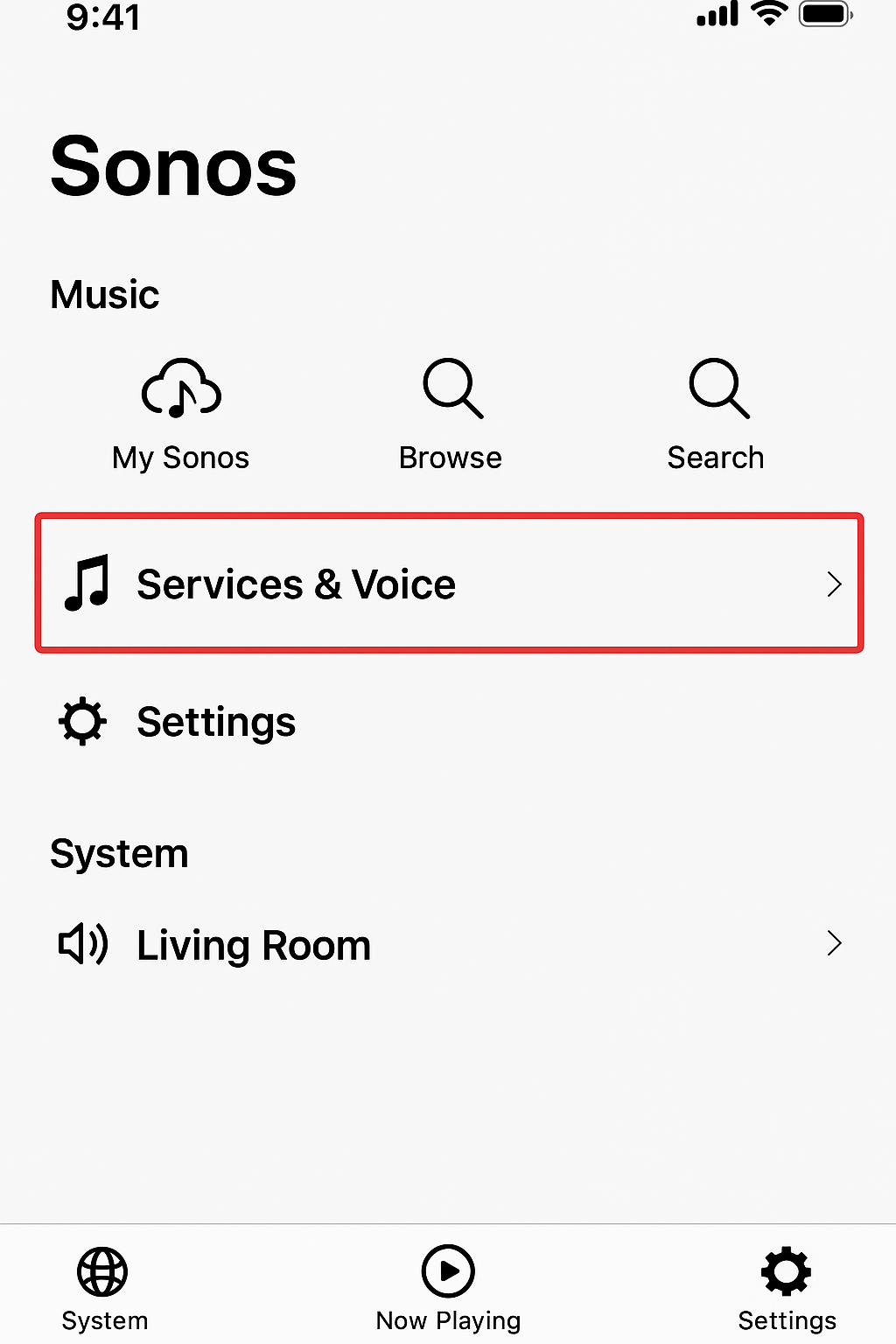
Step-by-Step Guide Sonos Beam Gen 2 Alexa setup
1. Open the Sonos App Go to the Sonos app on your mobile device and sign into your Sonos account.
2. Add Voice Assistant Navigate to: Settings > Services & Voice > Add a Voice Assistant > Amazon Alexa
3. Log In to Amazon You’ll be redirected to the Amazon Alexa login. Enter your credentials and allow permissions.
4. Link Alexa to Beam Select the Sonos Beam Gen 2 from your list of Sonos devices and confirm Alexa as your voice assistant.
5. Use the Alexa App (Optional) In the Alexa app, go to Devices > Add Device > Speaker > Sonos, if you want additional configuration.

Confirming Connection
Once your Sonos Beam Gen 2 Alexa setup is complete, your soundbar will respond instantly to voice commands. You can start controlling your entertainment and smart home devices completely hands-free.
Try saying:
“Alexa, play Spotify on Beam.”
“Alexa, turn up the volume.”
“Alexa, what’s the news today?”
If the LED indicator on your Beam lights up when you speak, Alexa is active and listening. This confirms that your Sonos Beam Gen 2 setup was successful, and your soundbar is now ready to handle playback, information requests, and smart home controls effortlessly.

Smart Home Integration
Once your Sonos Beam Gen 2 Alexa setup is complete, the soundbar seamlessly integrates into your Alexa-powered smart home ecosystem. From entertainment to automation, it becomes a central part of your connected environment.
You can now:
Sync the Beam with Alexa Routines, such as a morning wake-up scene that plays your favorite playlist while turning on the lights.
Group the Beam with multi-room audio setups, allowing synchronized playback across all Alexa-enabled speakers.
Use Alexa voice commands to control smart lights, plugs, thermostats, and appliances, bringing hands-free convenience to your entire home.
With a proper setup, your soundbar evolves beyond audio—it becomes a true smart home command center powered by your voice.
Troubleshooting Common Issues
If your Sonos Beam Gen 2 Alexa setup isn’t responding or fails to complete, don’t worry—most issues can be fixed with a few quick checks. Follow these troubleshooting steps to restore full Alexa functionality:
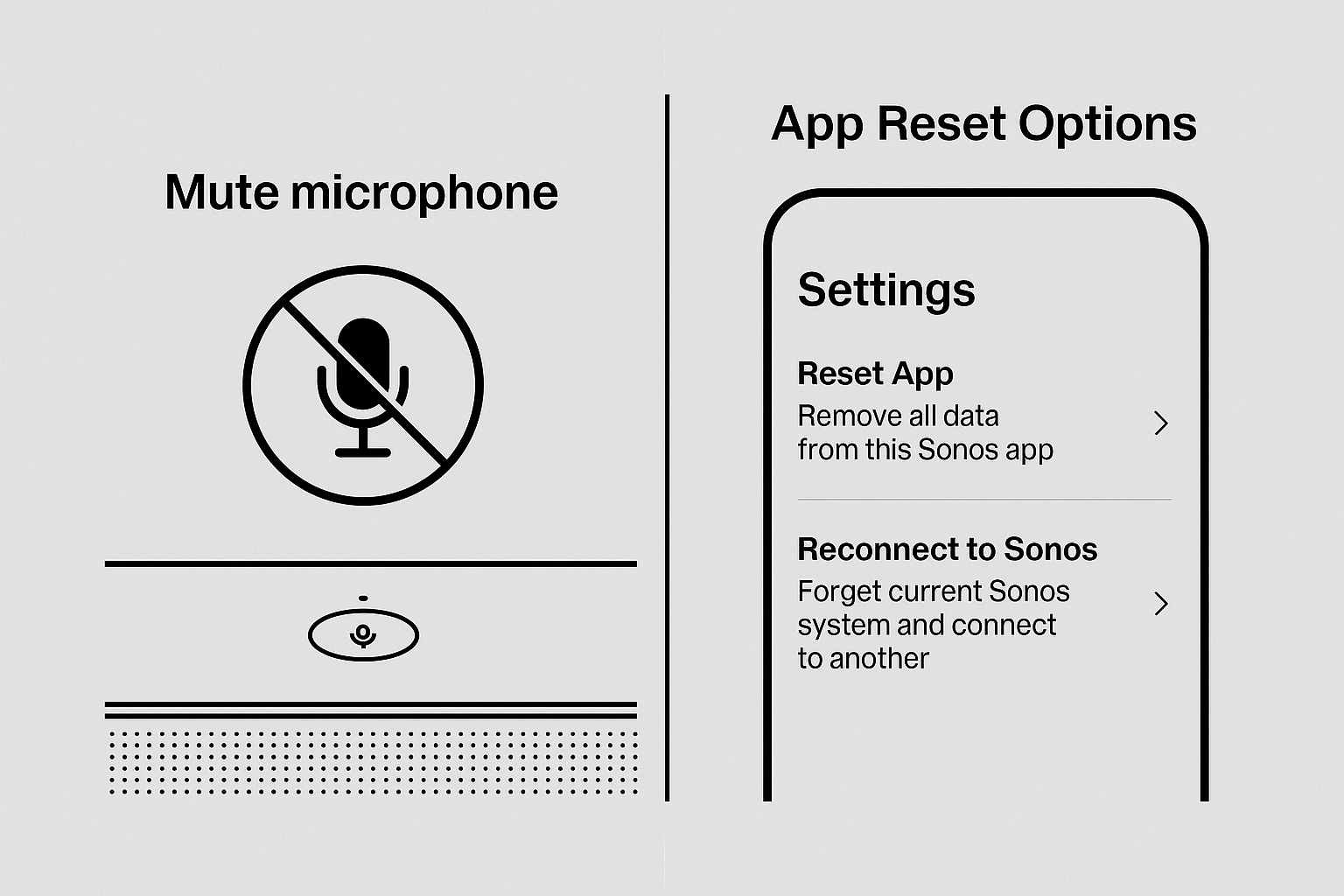
Check the Microphone Switch
Make sure the microphone on top of the Beam is turned on. If you see a red light, it means the mic is muted—tap the button to enable voice detection.Restart Your Wi-Fi Router
Unstable or weak Wi-Fi connections can interrupt the linking process. Restart your router, wait a minute, and ensure both the Sonos Beam and your mobile device reconnect to the same network.Re-add Alexa in the Sonos App
Open the Sonos app, go to Voice Assistant settings, remove Alexa, and re-add it by following the setup steps again.Update Firmware and Apps
Check for firmware updates in both the Sonos app and Alexa app. Running the latest versions helps resolve compatibility and linking issues.
After completing these steps, test your setup by saying, “Alexa, play music on Beam.” If the LED lights up, your Sonos Beam setup is working correctly.
Bonus Alexa Tips for Sonos Beam Gen 2 Alexa setup
Once your Sonos Beam Gen 2 Alexa setup is complete, you can take advantage of Alexa’s full voice control integration—not just for music, but also for your TV and connected devices.
Here’s what you can do:
Control your TV hands-free (if it supports HDMI-CEC). Simply say, “Alexa, switch to HDMI 1” or “Alexa, turn off the TV.”
Play music directly from supported streaming services like Amazon Music, Spotify, Pandora, and Apple Music.
Adjust volume, skip tracks, or pause playback with simple voice commands, without needing a remote.
With a complete setup, your entertainment system becomes fully voice-driven—allowing you to manage your TV, music, and smart home ecosystem effortlessly.
Final Thoughts
The Sonos Beam Gen 2 is already one of the smartest soundbars on the market, but after completing your Sonos Beam Gen 2 Alexa setup, it transforms into a powerful centerpiece for any voice-controlled smart home.
With Alexa built in, you can play your favorite playlists, control smart lights, or even command your TV—all without touching a remote. The combination of Alexa and the Beam Gen 2 delivers hands-free convenience, premium sound, and deep smart home integration, making it a perfect fit for modern living.
2 Comments
Thanks for this guide! I was struggling to get Alexa to recognize my Sonos Beam Gen 2, but following these steps made setup super easy. Now I can control my soundbar hands-free, which is a huge convenience.
I wasn’t sure if I needed extra devices to connect Sonos Beam Gen 2 with Alexa, but this guide cleared it up perfectly. The smart home integration feels seamless now. Highly recommend anyone with Sonos and Alexa follow these tips!