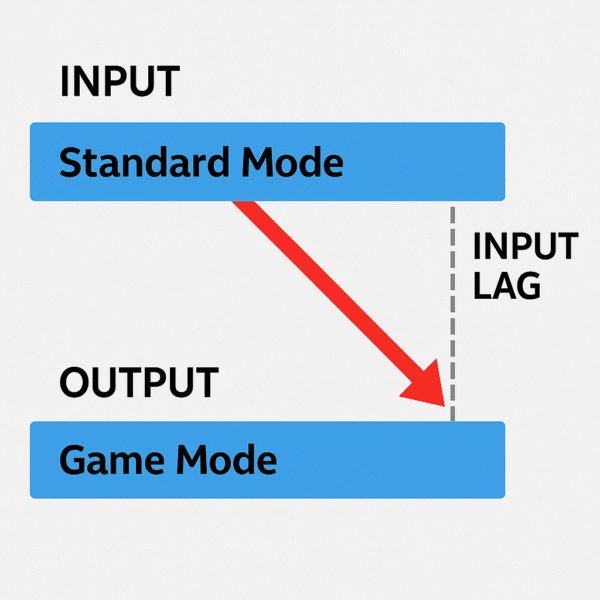
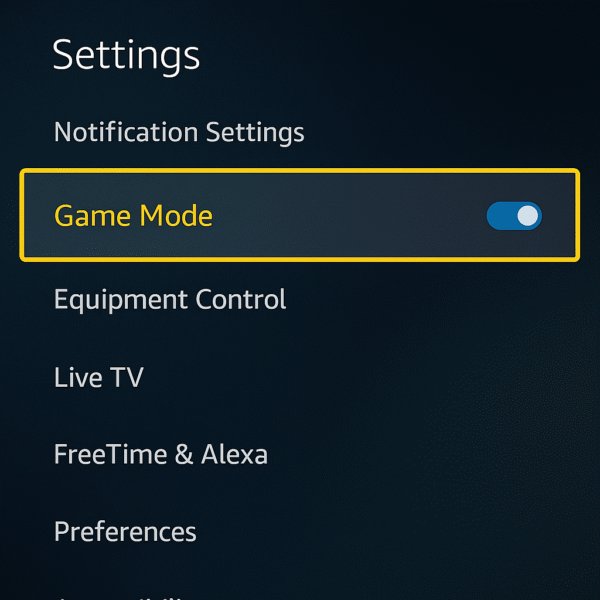
As more budget-conscious gamers embrace the Amazon Fire TV Omni QLED series, unlocking its true gaming potential has become a major focus in 2025. Fortunately, Game Mode on Fire TVs is a built-in feature designed to reduce latency and enhance responsiveness, creating smoother gameplay for fast-paced titles like Call of Duty, FIFA, and Fortnite.
In this step-by-step Fire TV gaming optimization guide, we’ll walk you through everything you need to know — from enabling Game Mode and minimizing input lag to fine-tuning settings for consoles like the PS5, Xbox Series X, and Nintendo Switch. With the right setup, your Fire TV can deliver a gaming experience that feels fast, fluid, and console-ready.
Why Game Mode Matters for Gaming
Modern smart TVs often include visual enhancements and image processing algorithms that improve movies and shows but can hurt gaming performance. These features, while great for cinematic viewing, tend to introduce display lag and delay controller response.
As part of your Fire TV gaming optimization, enabling Game Mode helps resolve this issue. It disables unnecessary post-processing, significantly reducing input lag and ensuring a faster, more responsive gameplay experience — especially vital for competitive or fast-action titles.
How to Enable Game Mode on Fire TV
Step 1: Enabling Game Mode for Fire TV Gaming Optimization
To begin your gaming optimization, follow these steps to activate Game Mode:
Press the Settings button on your Fire TV remote.
Navigate to Display & Sounds > Picture Settings.
Select your input source (for example, HDMI 1 if your Xbox or PS5 is connected there).
Scroll down to Game Mode and toggle it ON.
Once activated, Game Mode immediately reduces input lag and ensures smoother controller response — making your Fire TV more responsive for gaming.
Advanced Gaming Settings: Fire TV gaming optimization
Step 2: Fine-Tuning Settings for Fire TV Gaming Optimization
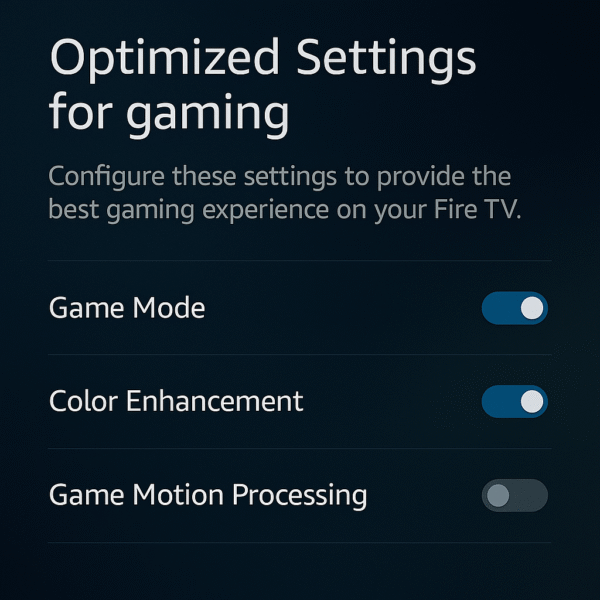
Beyond Game Mode, Fire TV includes several advanced settings that further enhance performance and reduce latency. As part of your optimization, adjust the following options:
Input Labeling: Rename your HDMI input to “Game Console.” Fire TV will automatically optimize display and color settings for gameplay.
Motion Settings: Turn Motion Smoothing OFF to improve responsiveness and eliminate artificial blur.
HDR Options: Enable or disable HDR10+ based on your console’s capabilities — PS5 and Xbox Series X typically support it, while older systems may not.
These adjustments help your Fire TV deliver faster input response, better contrast, and smoother motion, maximizing your overall gaming performance.
Compatible Consoles & Devices
Step 3: Console and Cloud Compatibility for Fire TV Gaming Optimization
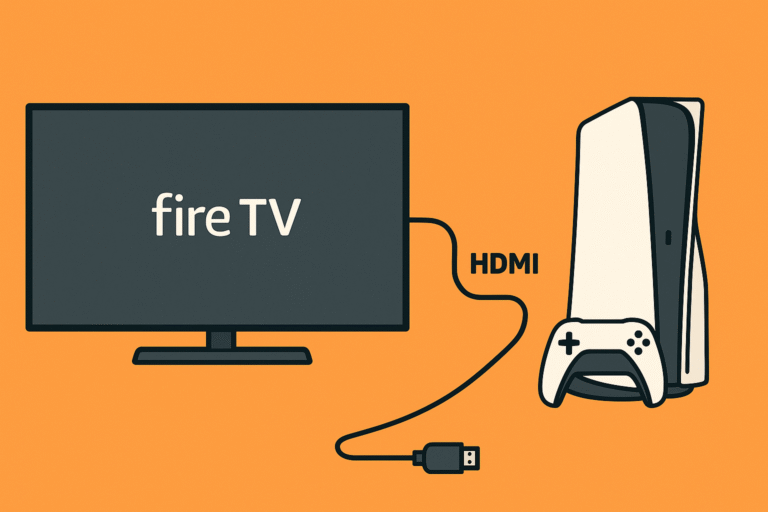
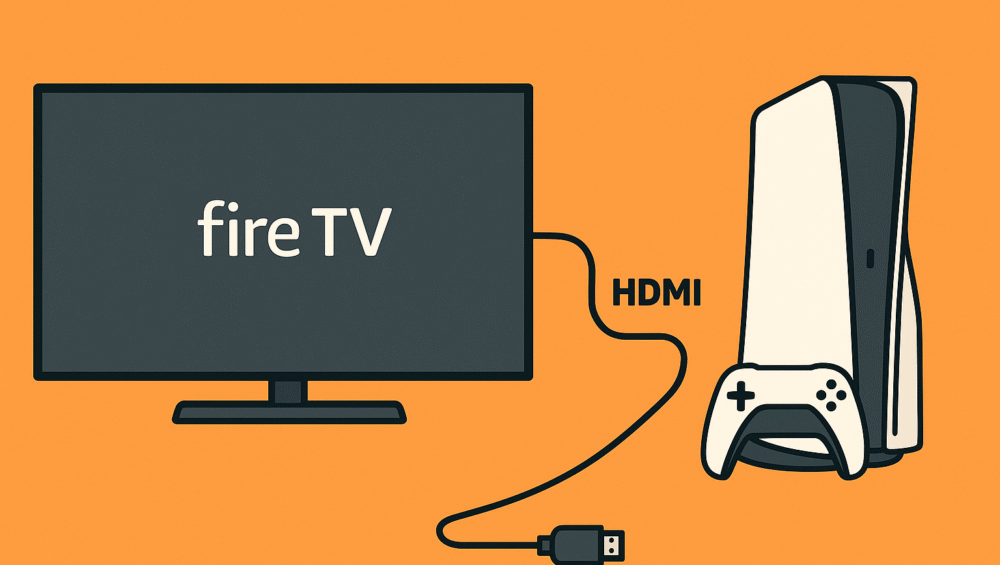
Another highlight of Fire TV gaming optimization is its broad compatibility with both physical consoles and cloud gaming platforms. Game Mode works seamlessly across the following devices:
PlayStation 5 / PlayStation 4 – Enhanced motion clarity and reduced lag.
Xbox Series X / S – Stable 4K HDR output with smooth responsiveness.
Nintendo Switch – Sharper visuals and faster reaction time for action games.
PC via HDMI – Great for casual or cloud-based PC gaming.
Bonus: Game Mode also enhances performance on cloud gaming services such as Amazon Luna and Xbox Cloud Gaming, both natively supported on Fire TV.
These integrations make Fire TV gaming a complete solution for console and cloud gamers alike.
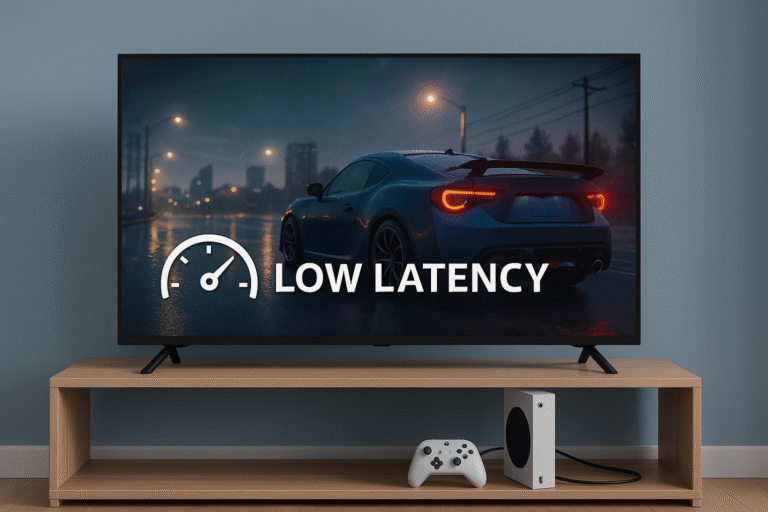
Input Lag Test Results: Fire TV gaming optimization
Step 4: Measuring the Results of Fire TV Gaming Optimization
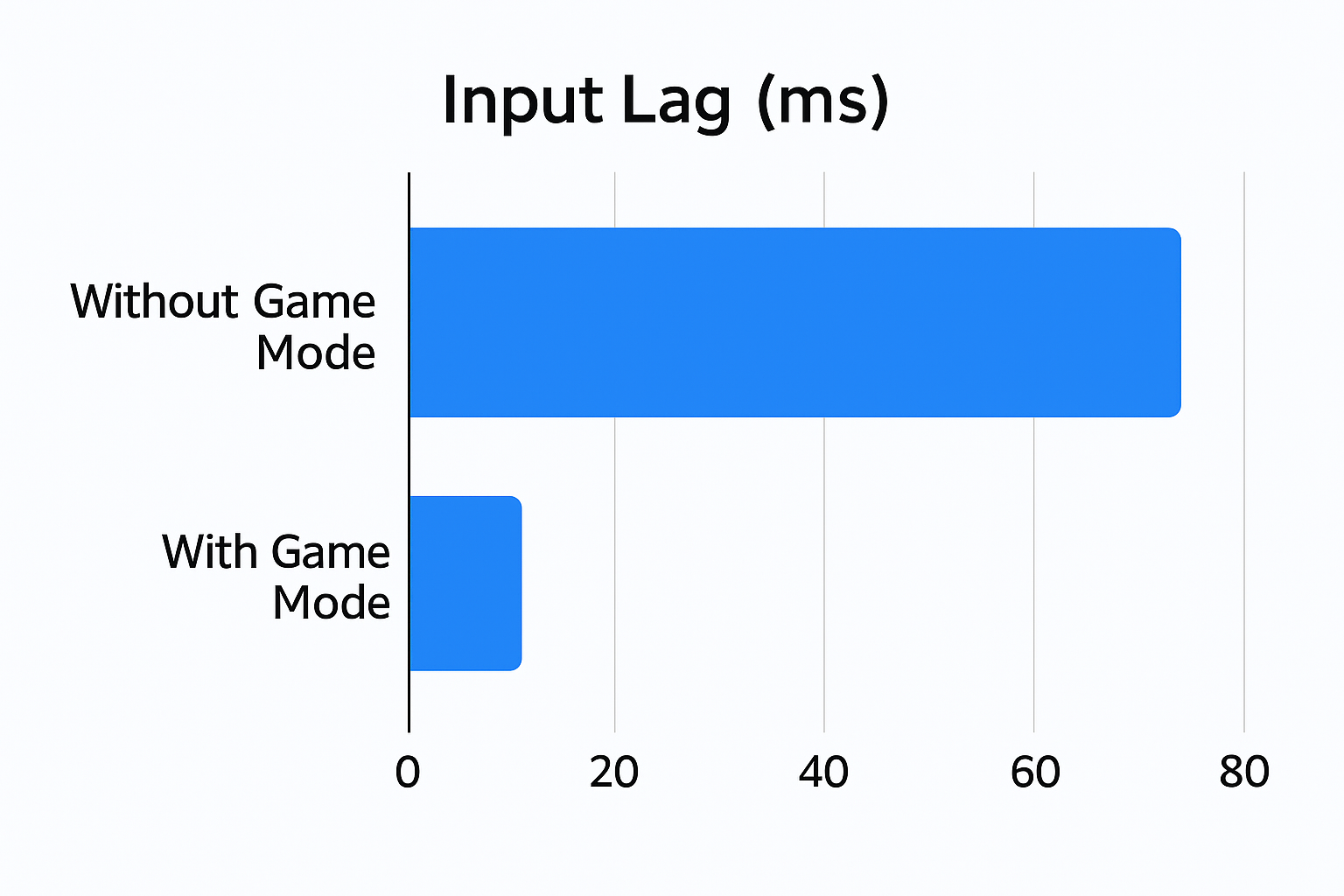
Testing shows that enabling Game Mode dramatically improves responsiveness across Fire TV models — a key takeaway from the Fire TV gaming optimization process.
| TV Model | Game Mode ON (ms) | Game Mode OFF (ms) |
|---|---|---|
| Fire TV Omni QLED 65″ | ~10ms | ~47ms |
| Fire TV 4-Series | ~15ms | ~50ms |
These results reveal a 4x improvement in input response time when Game Mode is active, offering smoother control and reduced delay — perfect for high-speed games and competitive play.
Tips for Best Gaming Experience on Fire TV
Step 5: Pro Tips for Fire TV Gaming Optimization
To get the absolute best performance from your setup, follow these expert recommendations for Fire TV gaming optimization:
🔌 Use HDMI 2.1 certified cables: These ensure maximum bandwidth and minimal latency for next-gen consoles like the PS5 and Xbox Series X.
🔄 Keep your Fire TV firmware updated: Regular updates deliver performance patches and new gaming enhancements.
🧩 Use HDMI 1 port for consoles: On most Fire TVs, HDMI 1 offers the highest bandwidth and most stable input.
⚡ Enable ALLM (Auto Low Latency Mode): If supported, this feature automatically activates Game Mode whenever your console is detected.
These simple tweaks can significantly reduce input lag, boost frame stability, and improve overall responsiveness, completing your Fire TV gaming optimization setup.
Alexa + Game Mode = Hands-Free Gaming
Step 6: Automating Game Mode with Alexa for Fire TV Gaming Optimization
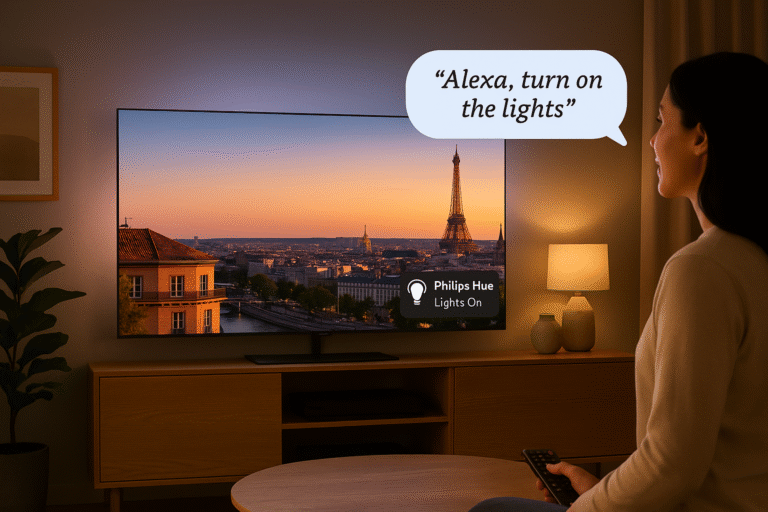
Although Game Mode must be toggled manually on most Fire TVs, you can still automate your gaming setup using Alexa routines — a powerful trick in Fire TV gaming optimization.
For example:
🗣️ “Alexa, start Xbox gaming” →
Switches the TV input to HDMI 1
Dims smart lights connected to Alexa
Launches Game Mode (on supported models)
This automation not only streamlines your setup but also creates a cinematic and responsive gaming environment — showcasing how Fire TV gaming optimization can blend performance and smart home control effortlessly.